You can easily clone posts or copy them to new drafts for further editing without saving and overriding existing content. With a single click, all of the original settings and content will be copied. Then, when you’re ready, you can merge your changes and update the original post.
If you are editing a page, the best and easiest way to use this feature, is to switch your page view to use the “Default Pages” option at the top of the All Pages, instead of the nested page view that is on by default.

When you hover over a post, you will see a few new options: Clone, New Draft, and Rewrite & Republish. Click the ‘Rewrite & Republish’ link.

While ‘Clone’ creates a separate new post, ‘Rewrite & Republish’ is designed specifically to update a live post. It automatically creates a duplicate version and opens it in the content editor screen. You can now make as many changes as you want without publishing live.
To save your progress, click the ‘Save draft’ button in the top right corner of the page.

You will now be able to access this WordPress post by visiting the Posts > All Posts* page from the WordPress admin sidebar.
It will say, ‘Draft, Rewrite & Republish’ next to the post name.

*substitue “posts” for “pages” or a custom content type
When you are ready to publish, just click the ‘Republish’ button in the upper right corner of the page, when editing.

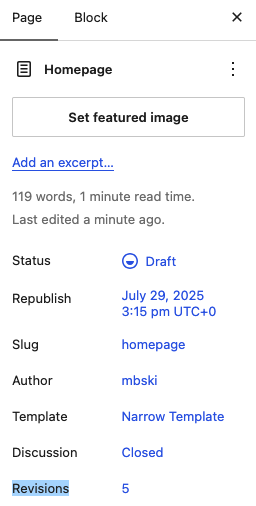
You can compare your edits by clicking the number next to the “Revisions” option under the Post/Page settings.
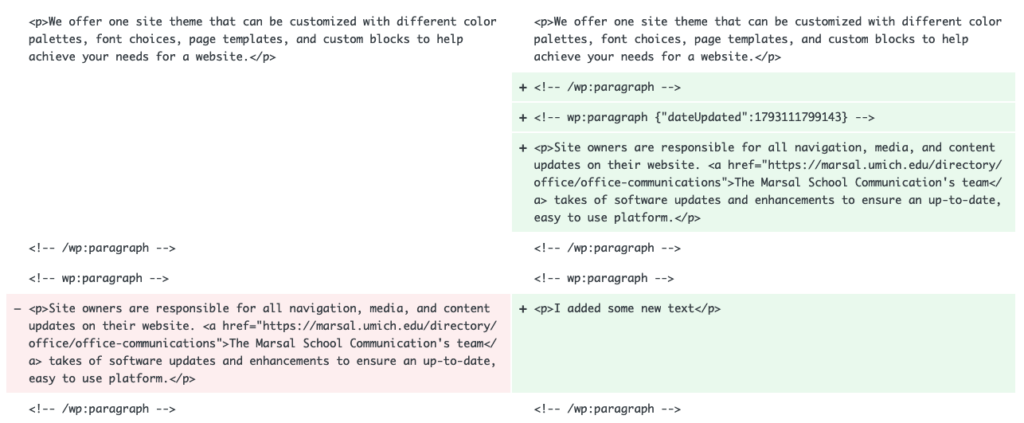
This brings up a revision screen where you can see the differences highlighted in green.
If you are happy with the changes, then click the ‘Return to editor’ link at the top of the screen.